
My UGUI Guides
I write guides that explain how to work with the UGUI system inside Unity. Each focuses on a specific element and comes with example codes and Unity project files.
Guides
The Unity UGUI Guide on Canvas and Canvas Scaler
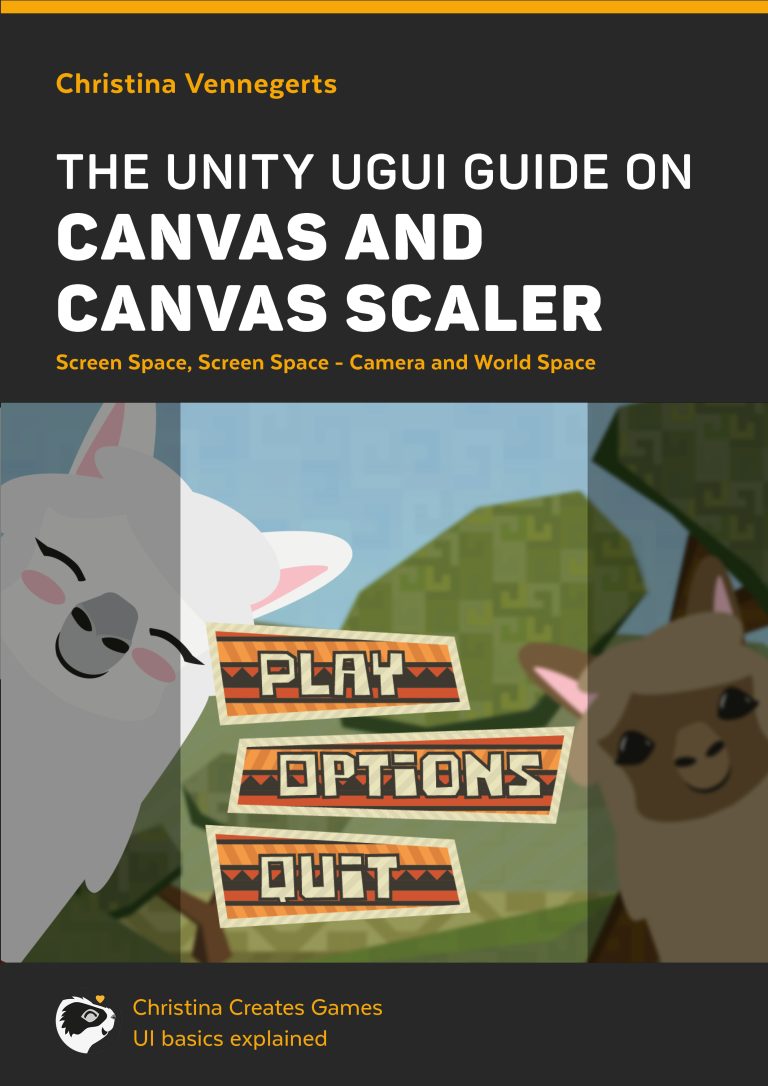
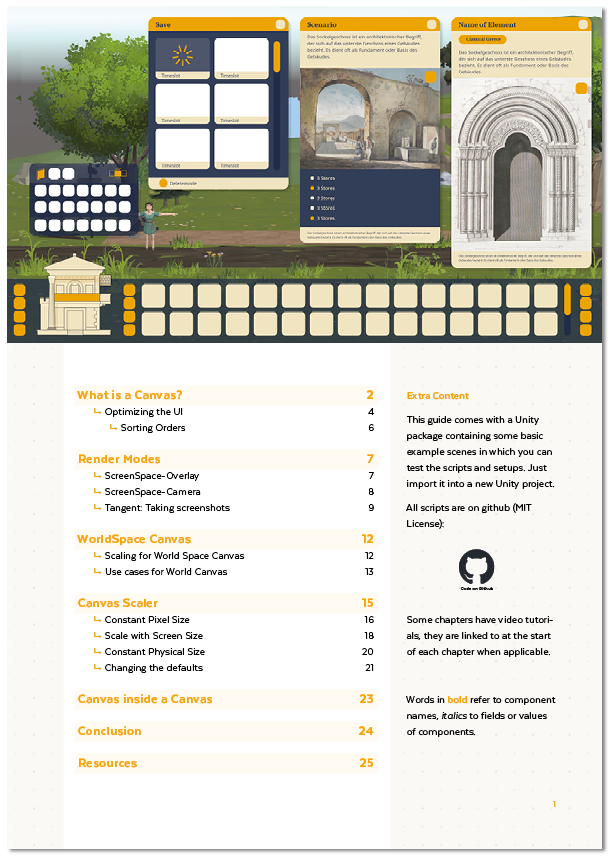
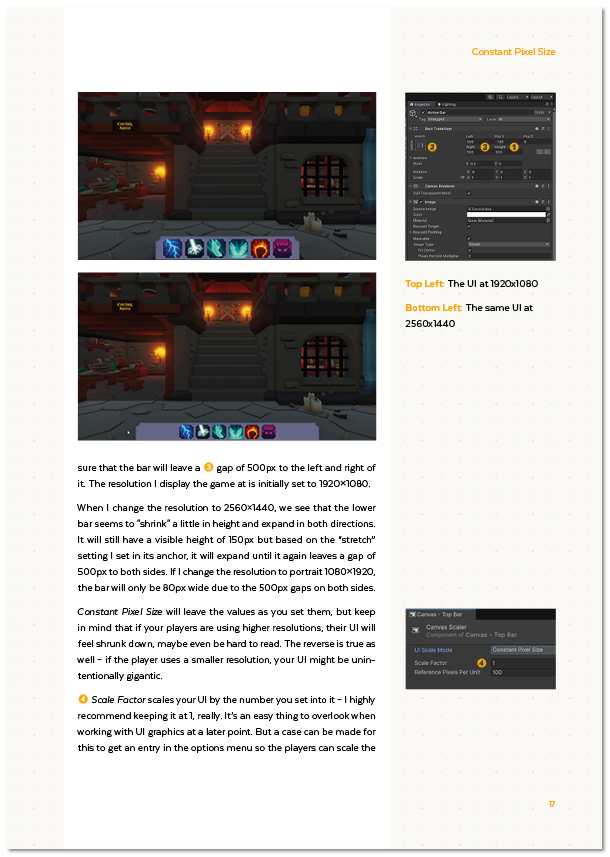
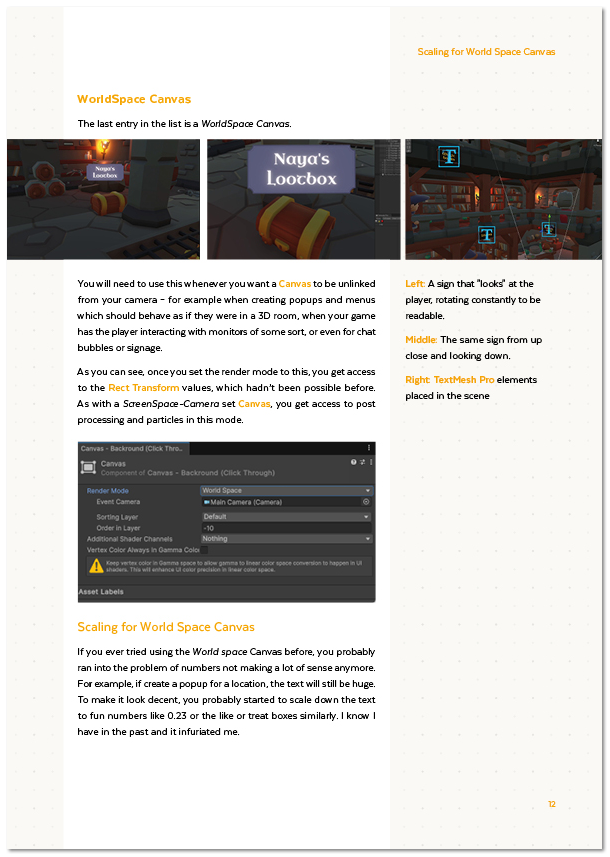
This 25-page guide takes you into everything you need to know about Unity’s Canvas system. You’ll learn why the Canvas is the heart of all your UI elements, how different render modes (ScreenSpace-Overlay, ScreenSpace-Camera, and World Space) affect your game’s look and feel, and when to choose each. Illustrated examples walk you through optimizing complex UIs with multiple Canvases, using the Canvas Scaler for layouts that work across devices, and creating in-world UI elements that sit seamlessly in your 3D scenes.
I poured a lot of knowledge and practical use cases into this guide and am convinced you will find value in it if you are interested in learning about the Canvas and the Canvas Scaler. It is a guide full of explanations, images, experiences and comes with a Unity package with example scenes for each Canvas Render Mode to give everything a try.
Things you will learn:
What a Canvas is and how its core components (Rect Transform, Canvas, Canvas Scaler, Graphics Raycaster) work together
The differences between ScreenSpace-Overlay, ScreenSpace-Camera, and World Space Canvas modes—and the use cases for each
How to optimize UI performance by splitting complex interfaces into multiple Canvases and managing sorting orders
How to use the Canvas Scaler’s three modes (Constant Pixel Size, Scale With Screen Size, Constant Physical Size) to achieve resolution-independent layouts
Techniques for setting up default presets so every Canvas you create starts with your preferred settings
Billboarding and scaling strategies to integrate Canvas elements into your 3D world seamlessly
Contains:
25-page PDF Guide with detailed chapters and visual walkthroughs
Link to Source Code on GitHub (MIT License)
Unity Package including example scenes and scripts, ready to import and explore (created in Unity 6, version 6000.0.f1f1)
Available here $7


The Unity UGUI Guide on Anchors & Pivot Points
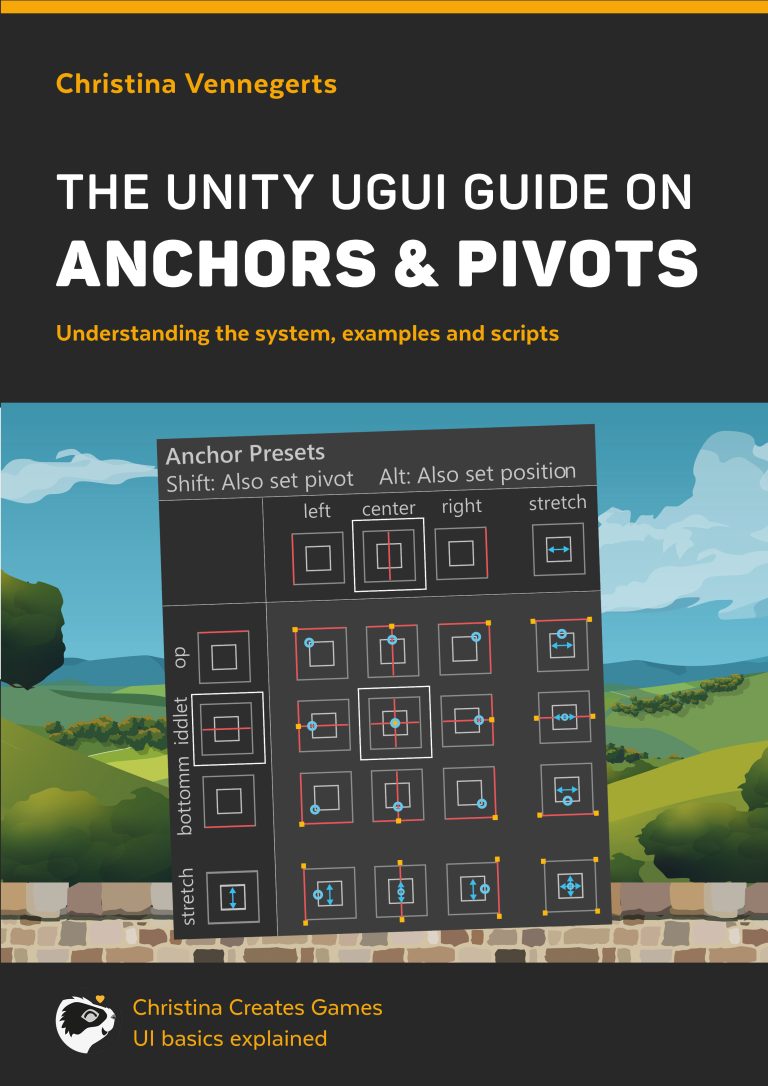
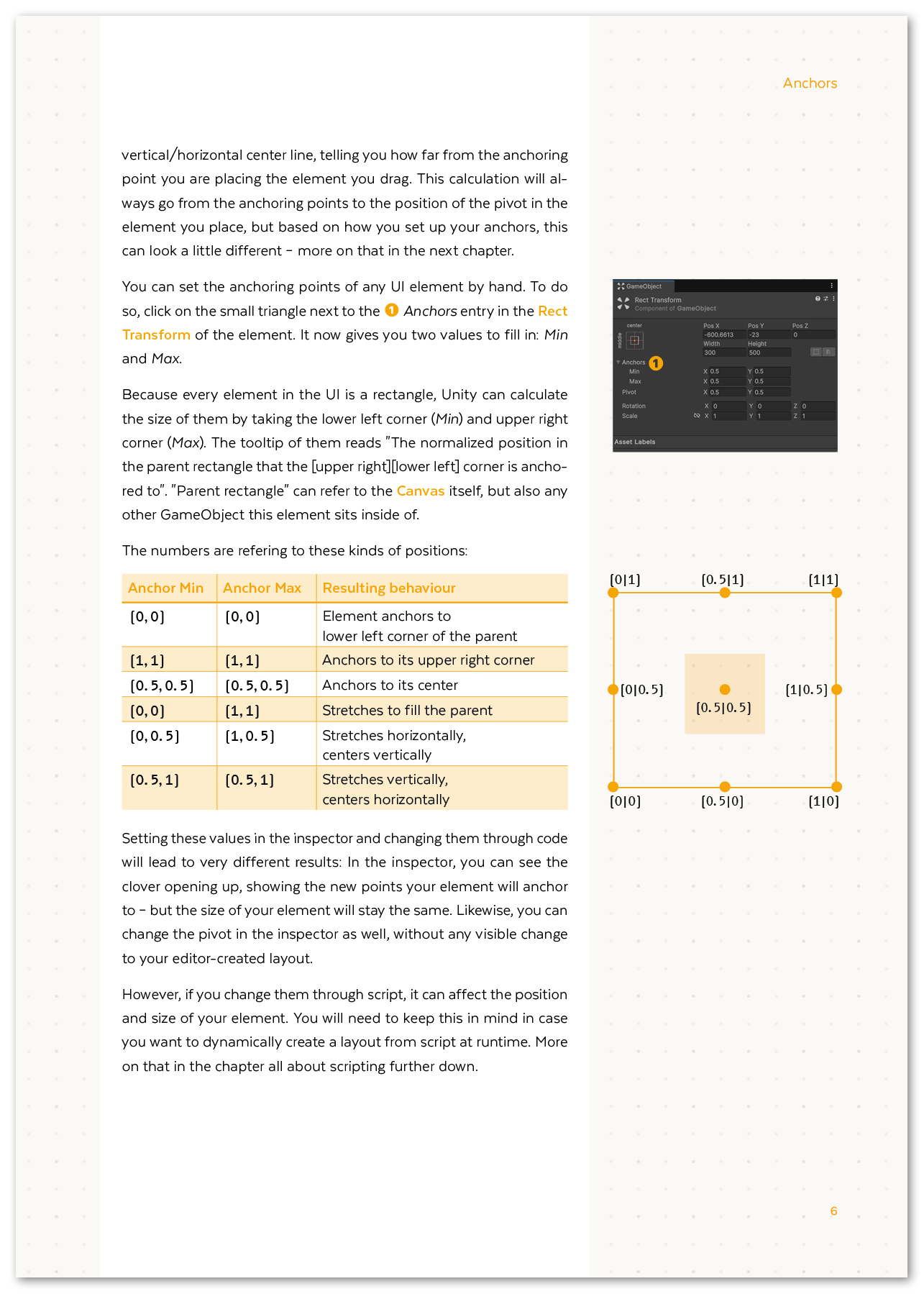
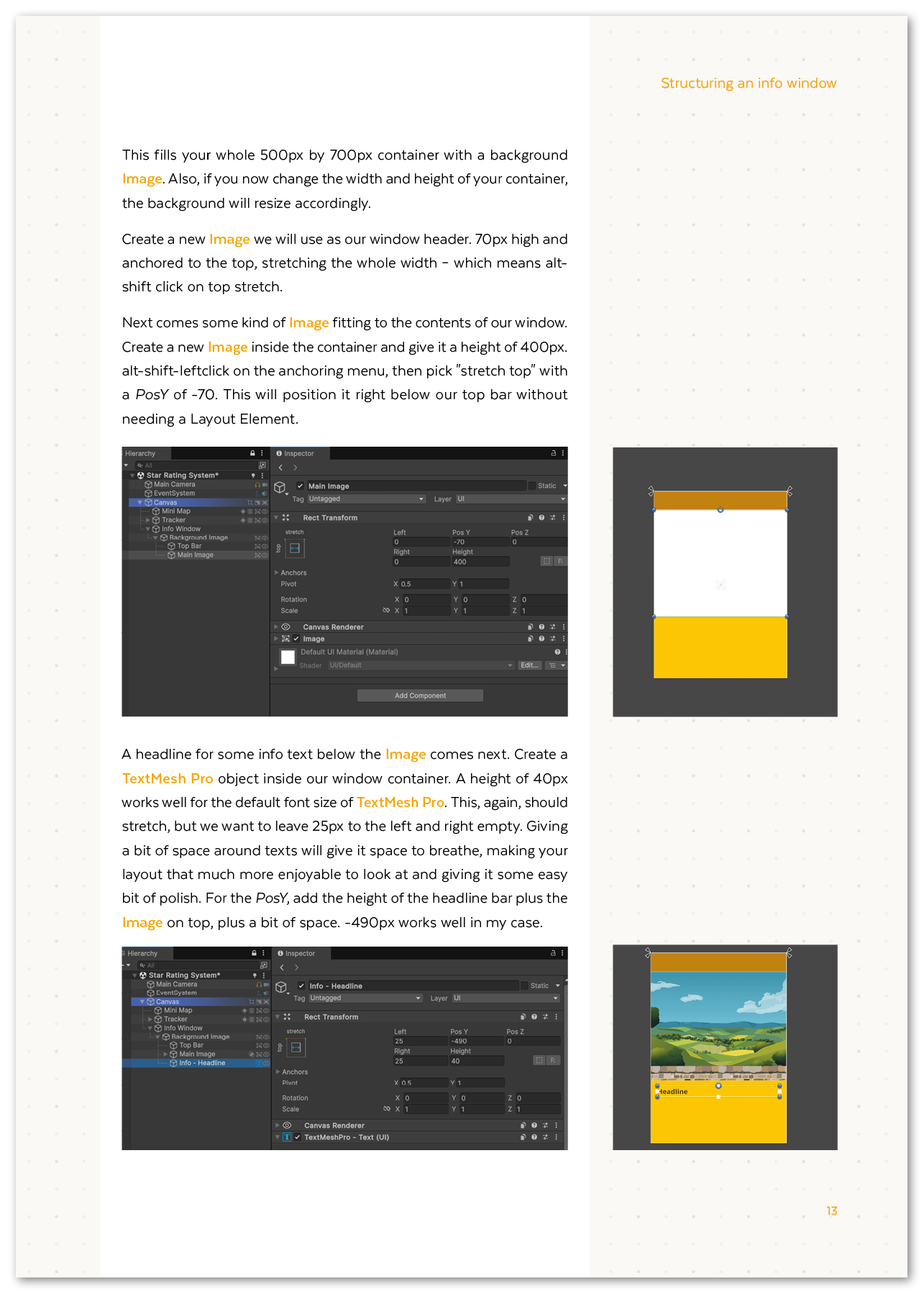
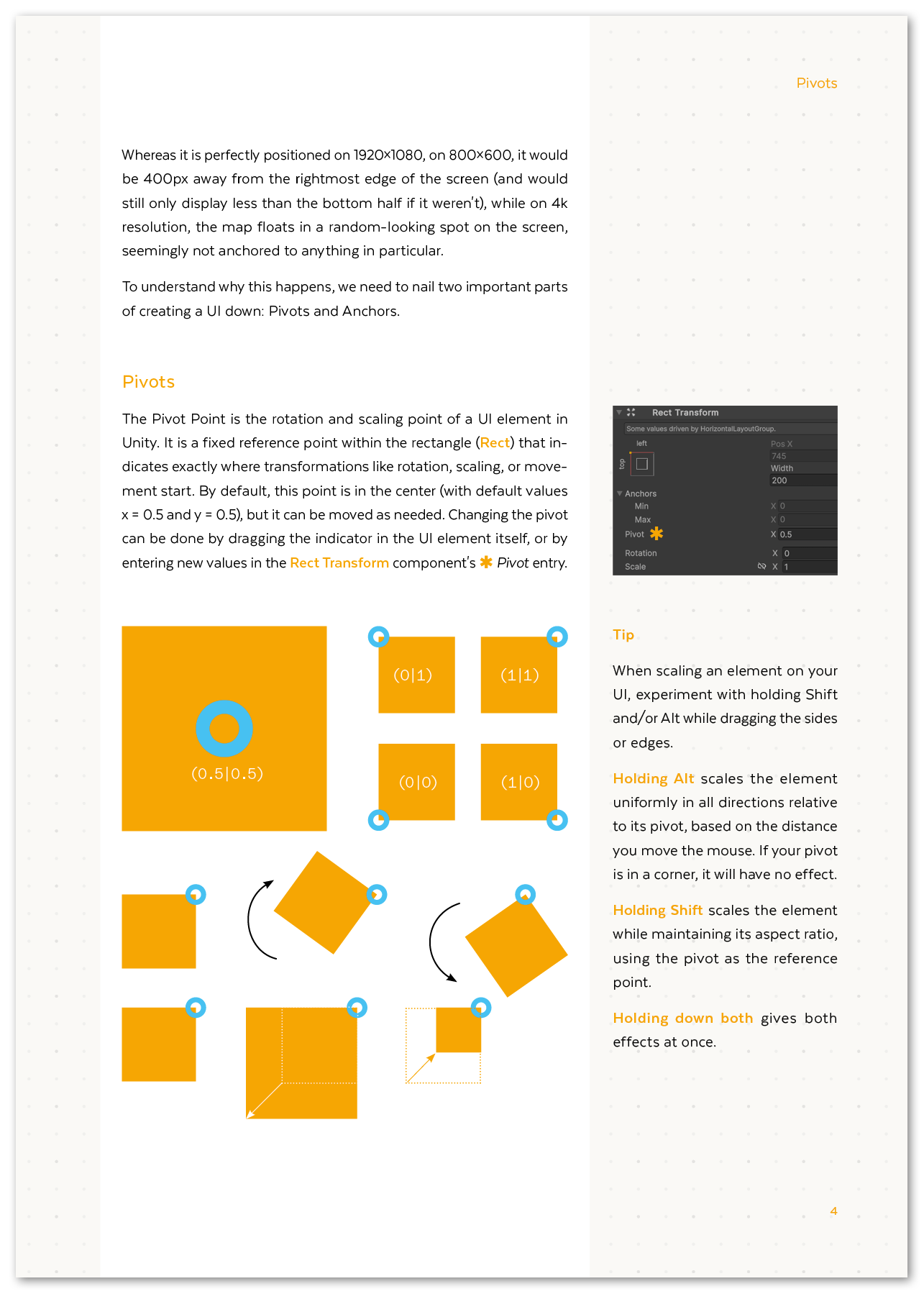
This 18-page guide walks you step-by-step through building responsive, robust UI layouts. You’ll discover how Unity’s anchoring system keeps buttons, bars, maps, and windows exactly where you want them, no matter what screen resolution or aspect ratio your players use. Along the way, you’ll get clear and illustrated examples of setting pivots, using anchor presets.
Understanding Anchors and Pivots helps a lot in structuring your layouts so they never “float” off-screen or overlap in strange ways. Use cases show you how to position UI elements in relation to one another on a canvas, as well as build an info window as an example. By the end, you’ll have a solid workflow for designing – and dynamically controlling – UI components across devices.
Things you will learn:
The fundamentals of UI placement on Unity’s Canvas, and why pivots matter
How to set and adjust pivot points for scaling and rotation
How to use the Anchor Presets menu
Techniques for stretching elements (top bars, footers, full-screen backgrounds)
Practical use cases: positioning items relative to other UI (e.g., mini-maps and quest trackers)
Structuring a responsive info-window with nested anchors and layout components
Scripting pivots and anchors at runtime with C#
Contains:
18-page PDF Guide covering every chapter in detail
Link to Source Code on GitHub (MIT License)
Unity Package with an example scene and all scripts, ready to import and experiment with
Version: This guide has been created with Unity 6 (and the Unity Package is for Version 6 as well)
Available here for $5
The Unity UGUI Guide on the Layout System
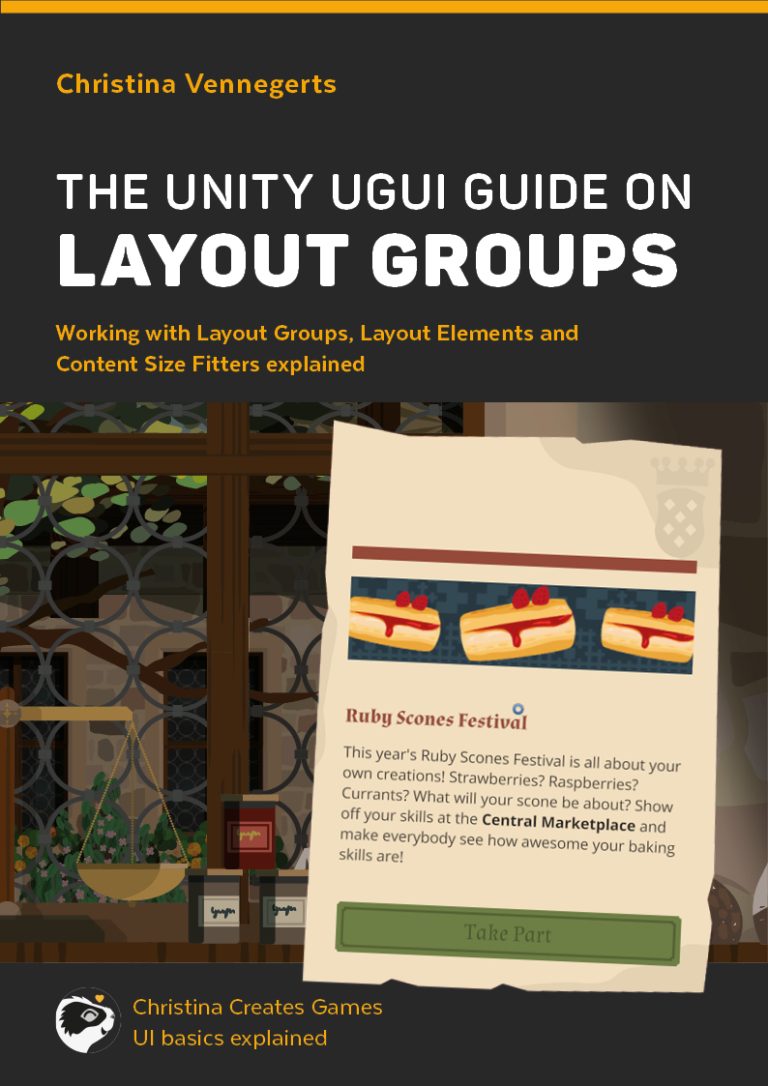
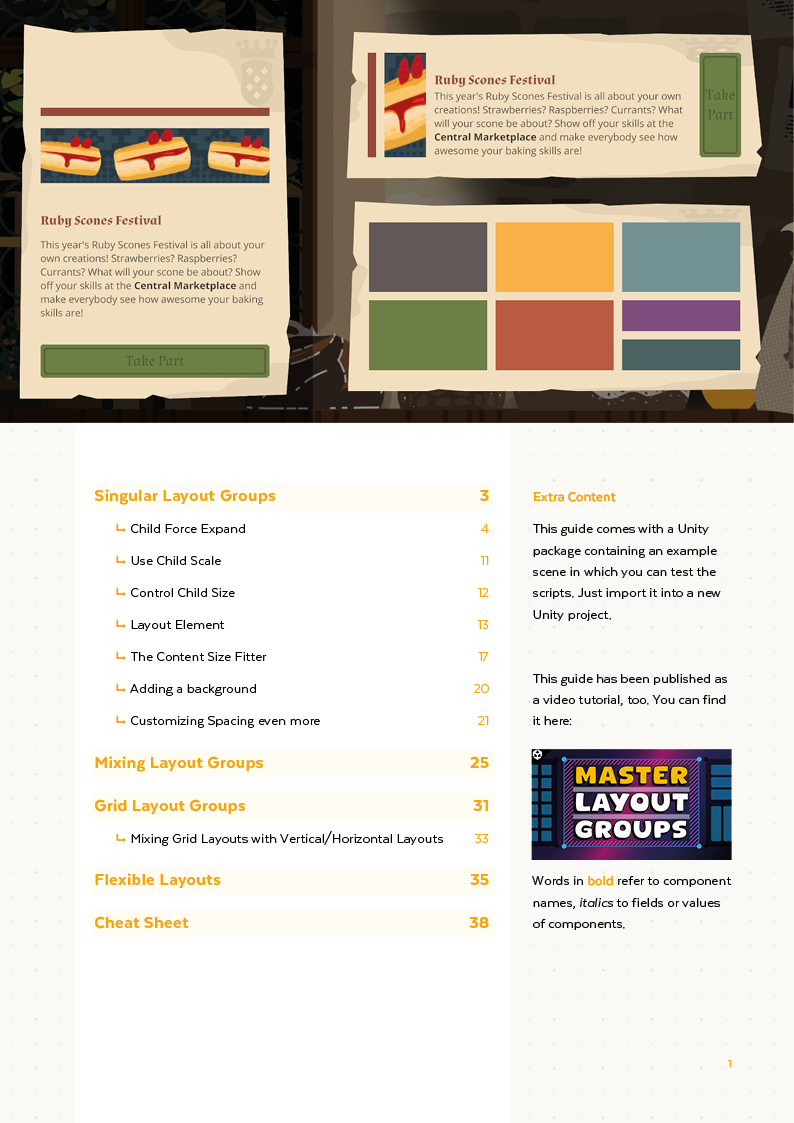
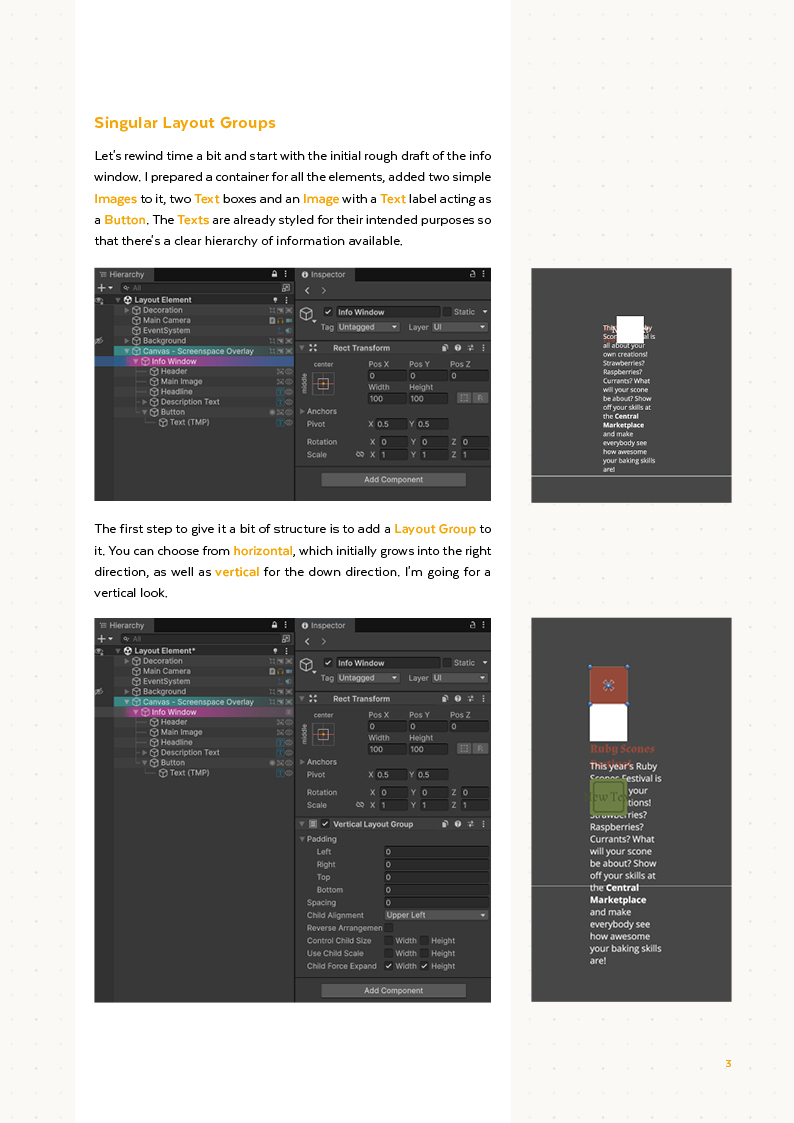
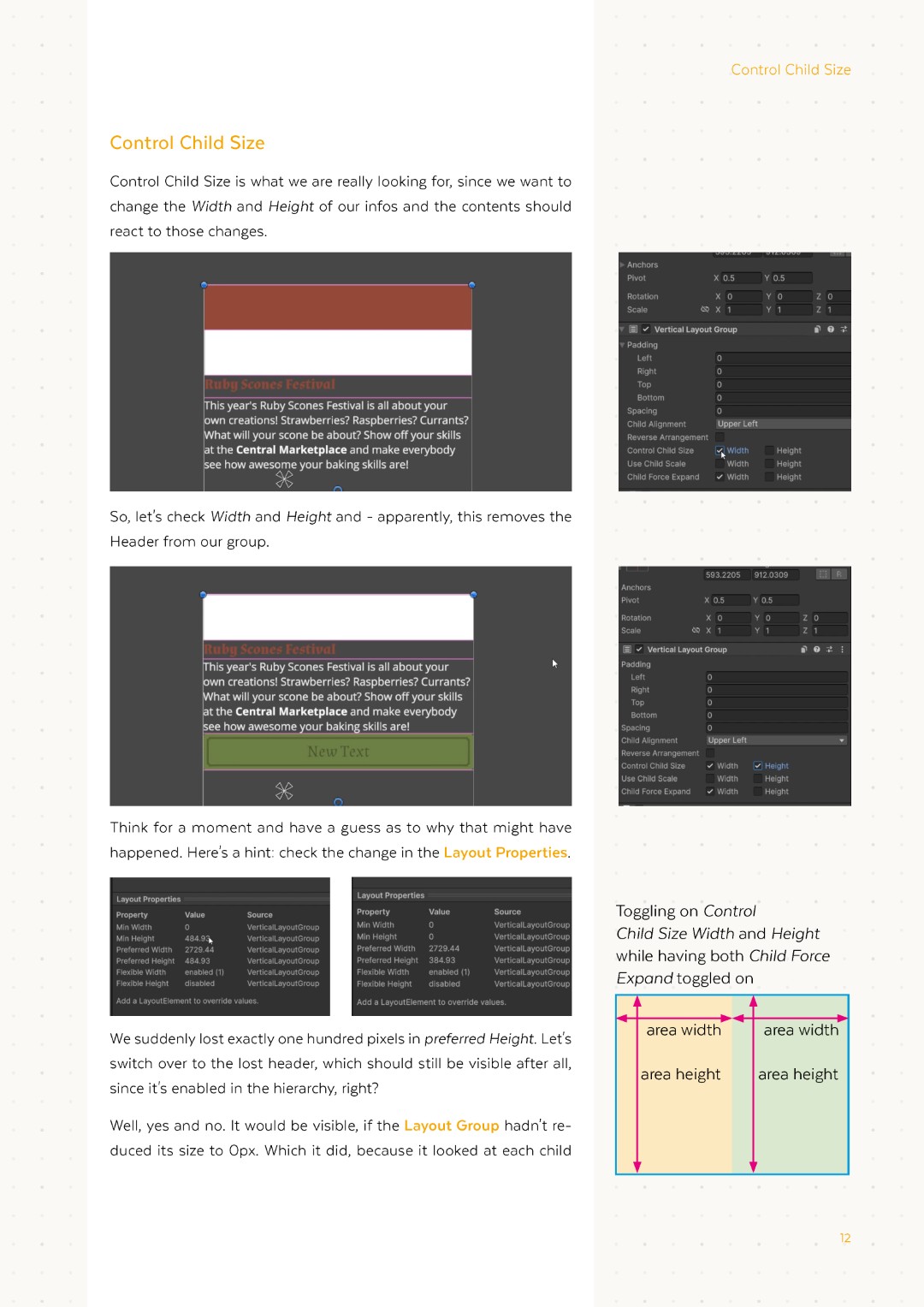
This 38-page guide walks you step-by-step through building responsive, robust UI layouts. You’ll learn how Unity’s Layout Elements, Layout Groups (vertical, horizontal, grid and mixed) as well as Content Size Fitters work and how to set them up to create responsive and flexible layouts.
Things you will learn:
- What Layout Groups, Content Size Fitters, and Layout Elements do
Vertical Layout Group deep-dive (Chapter 1)
- Child order, Child Alignment, Padding vs Spacing
- Child Force Expand: what it actually does and when to leave it off
- Layout Properties: Min / Preferred / Flexible explained
- Using Child Scale (why to avoid non-1 scale)
- Control Child Size and how it overrides RectTransform
- Layout Element: setting Min/Preferred to protect/drive child sizing
- Making the container responsive
- Controlling growth direction of Content Size Fitter
- Building a resizable background
- Using spacer objects
- Practical text/image/button sizing tips (overflow/truncate, centering, anchoring)
Combining groups & horizontal layouts (Chapter 2)
- Switching to Horizontal Layout Group
- Nesting a Vertical Layout Group inside horizontal one
- Overriding an inner group’s size
- Why Content Size Fitter under a Layout Group is problematic (warning & rebuild issues) and safer alternatives
Grid Layout Group essentials (Chapter 3)
- How Grid differs
- Constraint options (fixed row/column) and practical use
- Making a responsive grid: padding/spacing
- “Bento”/card patterns: nesting other layout groups as grid cells (and avoiding CSF on those children)
- Matching Grid Cell Size to complex child’s preferred size; debugging oddities
Bonus: Flexible sizing / proportions
- Flexible Width/Height to allocate proportional space (e.g., 30/70 split)
- Interaction with Child Force Expand, Control Child Size, and limitations per axis
Contains:
38-page PDF Guide
Unity Package with an example scene
Version: This guide has been created with Unity 6 (and the Unity Package is for Version 6 as well)
Available here for $4
The Unity UGUI Guide on Input Fields
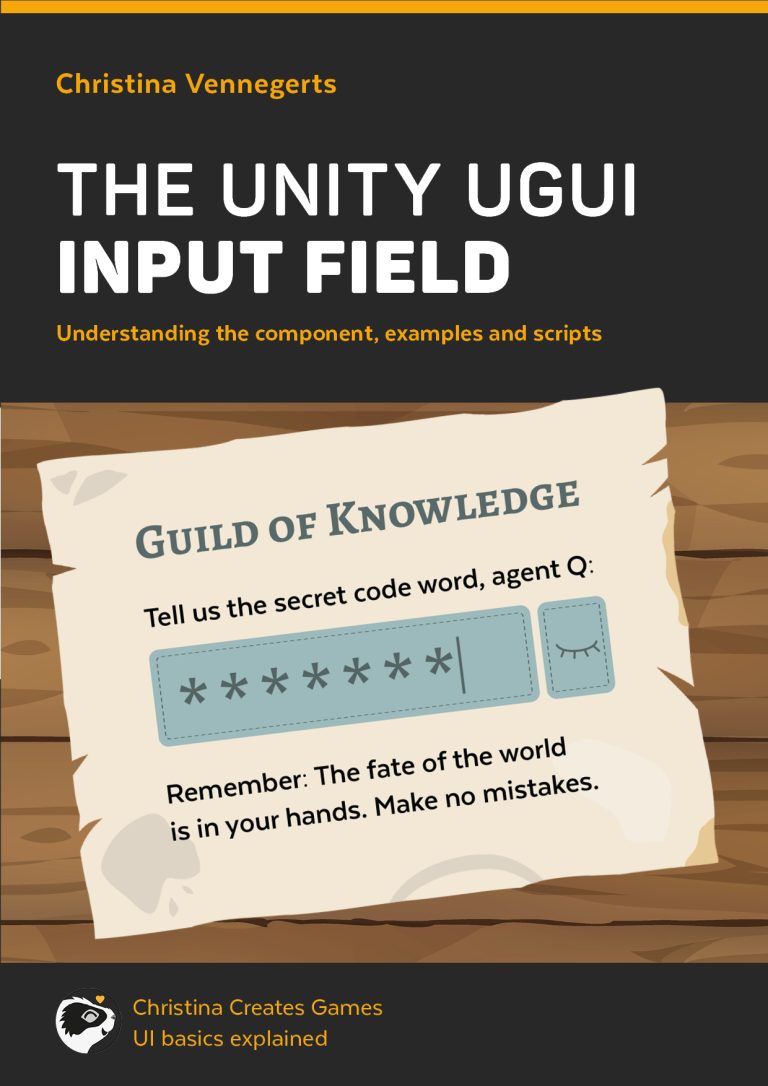
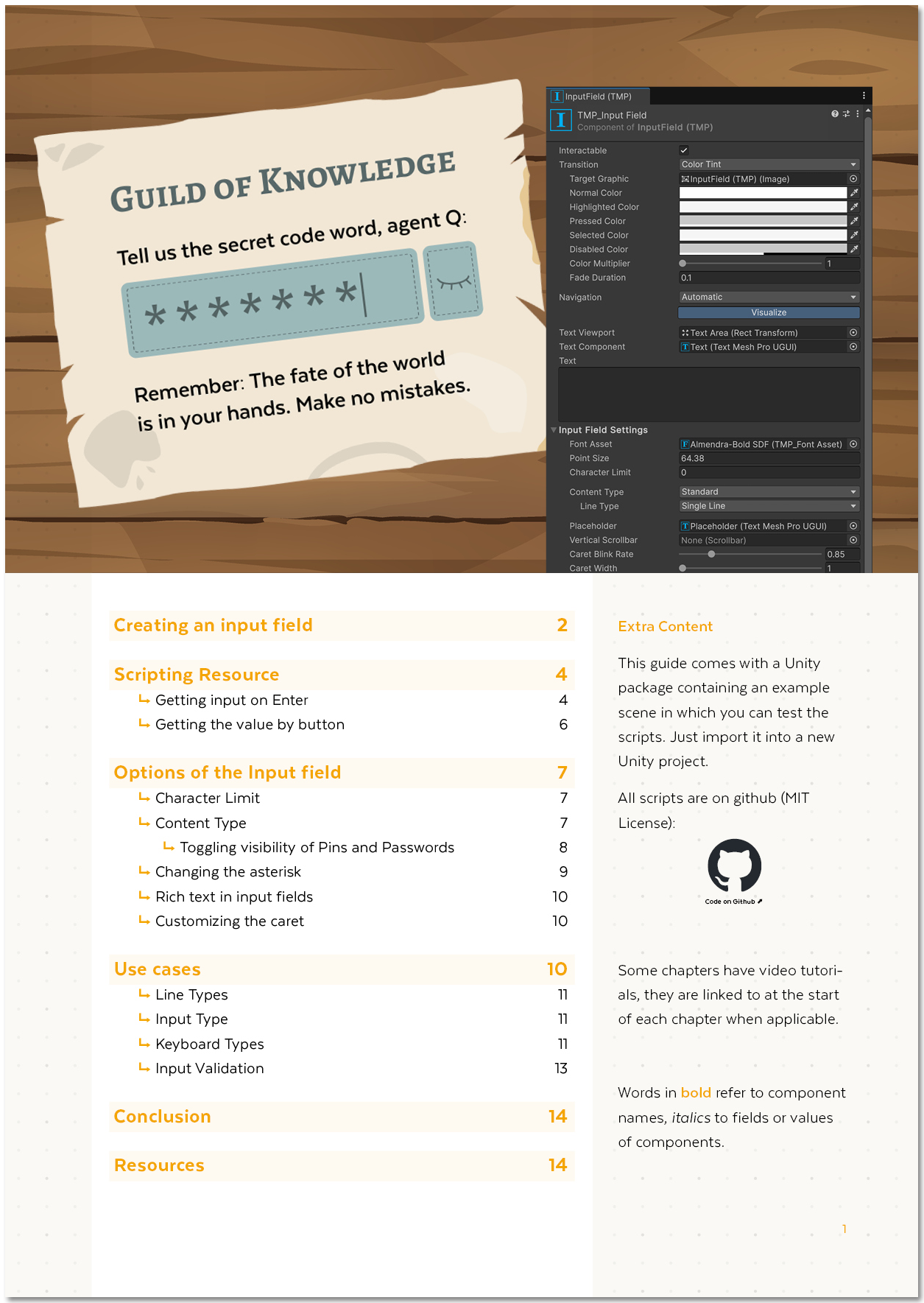
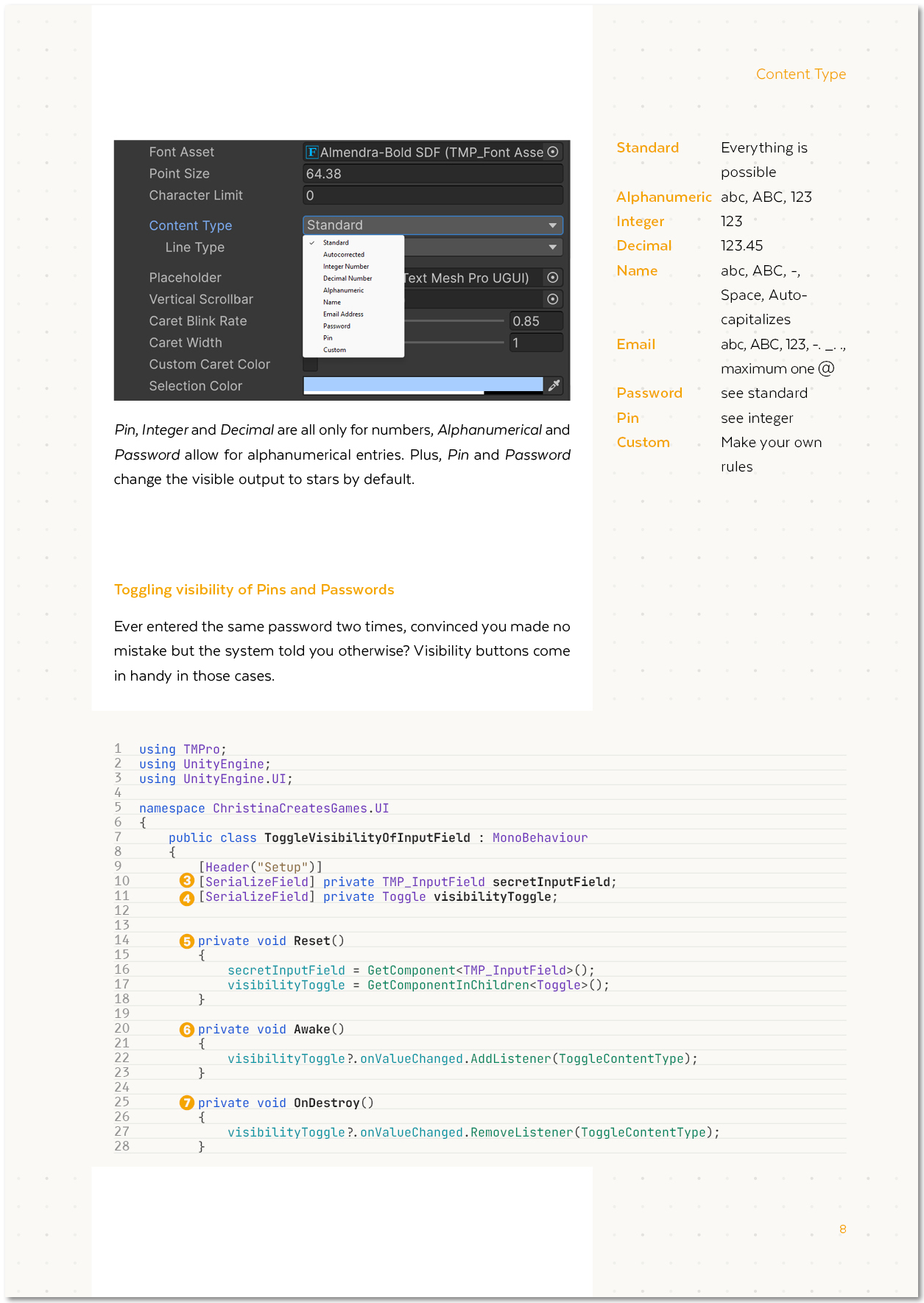
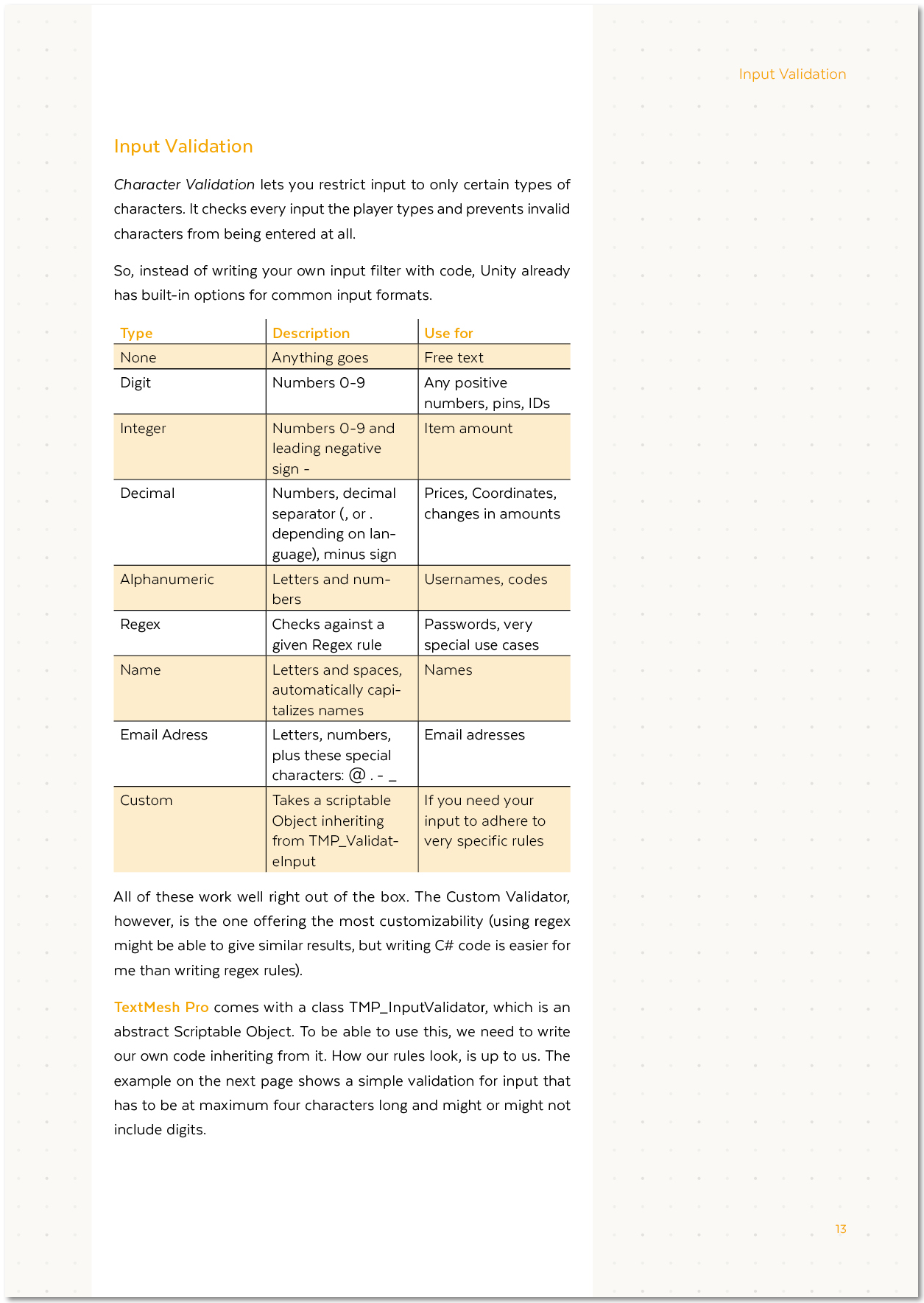
This 14-page guide leads you through everything you need to know about Unity’s Input Field component. We start by creating a TextMesh Pro Input Field in the hierarchy, go through it’s component’s setup (Placeholder and Text child elements, Control Settings, Unity Events), and learn how to capture input on submit by pressing enter and via button clicks. Illustrated examples show you how to set character limits, choose content types (Name, Email, Decimal, Password, Pin,…), toggle visibility of sensitive input, change the asterisk character, and customize the blinking caret .
This guide is full of example use cases, screenhsots and explanations from the basic set up all the way to creating a custom validator. By the end, you’ll have a robust understanding for handling any text-input scenario in your game .
Things you will learn:
- How to create and configure a
TMP_InputFieldcomponent in your Canvas - Capturing player input via
onSubmit(Enter key) and button clicks - Setting character limits, content types (Standard, Name, Email, Decimal, Password, Pin), and restoring placeholders on ESC
- Toggling visibility for passwords and pins, and customizing the asterisk character
- Enabling or disabling rich-text editing and customizing the caret appearance
Handling different use cases: single-line vs. multi-line inputs, mobile keyboard types, and input validation with built-in and custom validator
Contains:
- 14-page PDF Guide with detailed chapters, tables, tons of images, and reusable code samples
- Link to Source Code on GitHub (MIT License)
- Unity Package including an example scene and all scripts, ready to import and experiment with (created in Unity 6, version 6000.0.4f1f)
Available here for $5
The Unity UGUI Guide on Scroll Rects
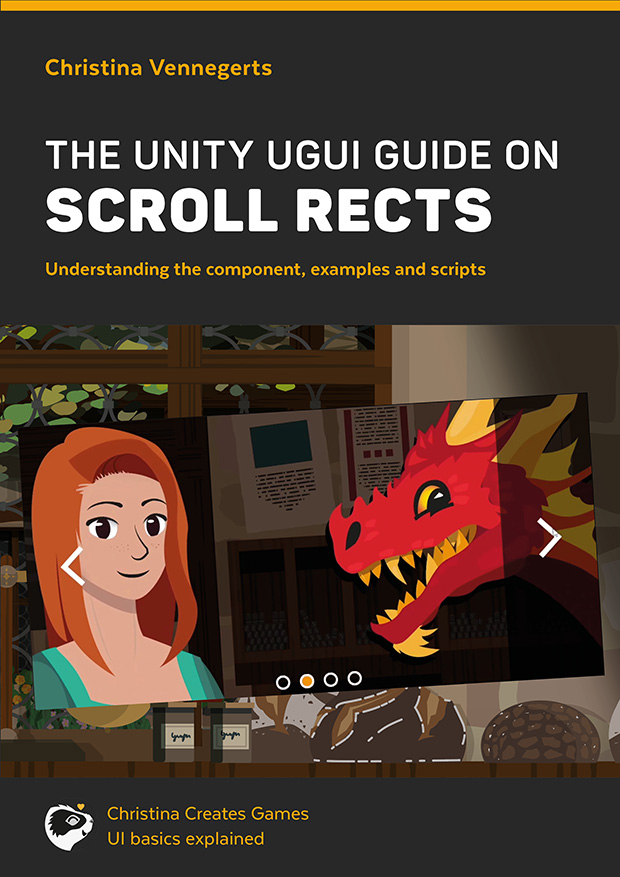
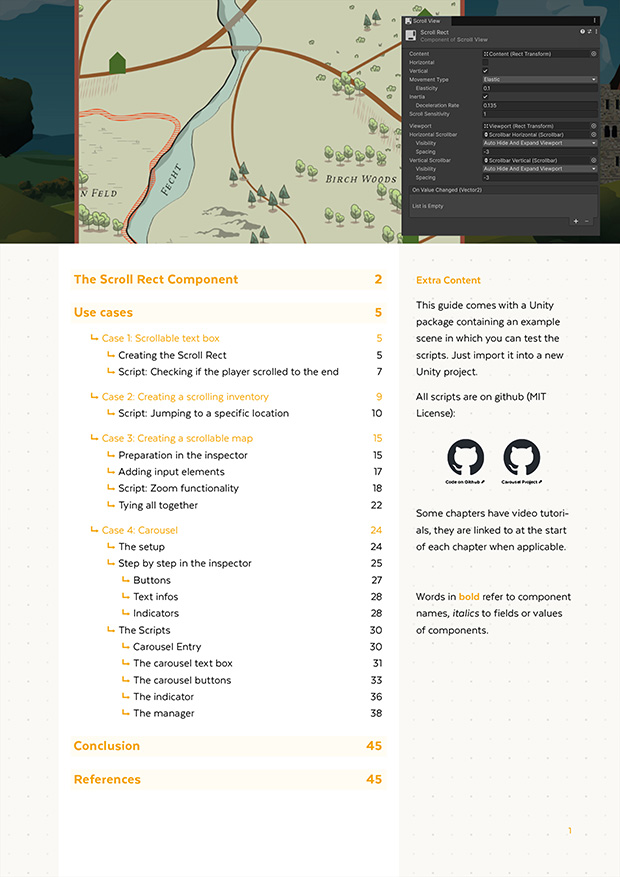
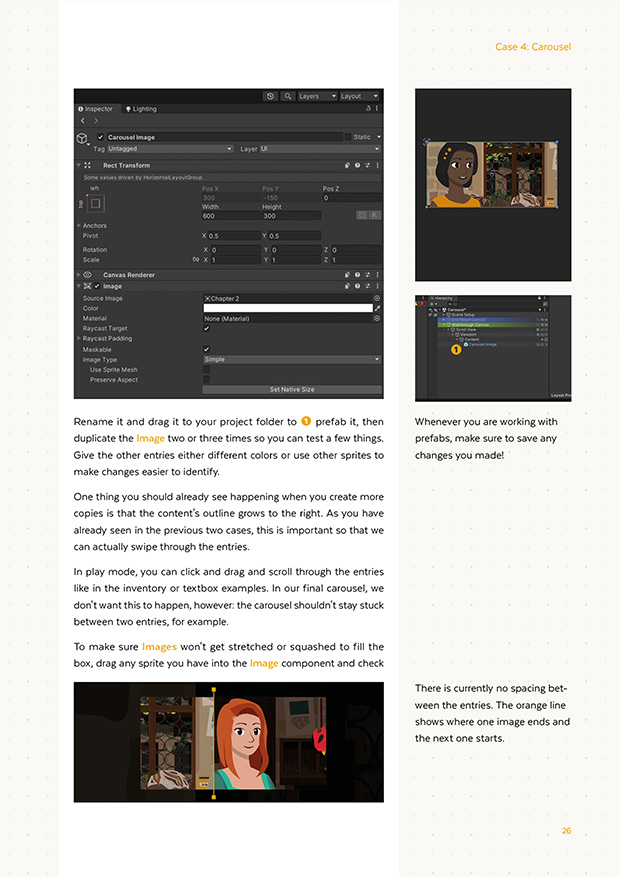
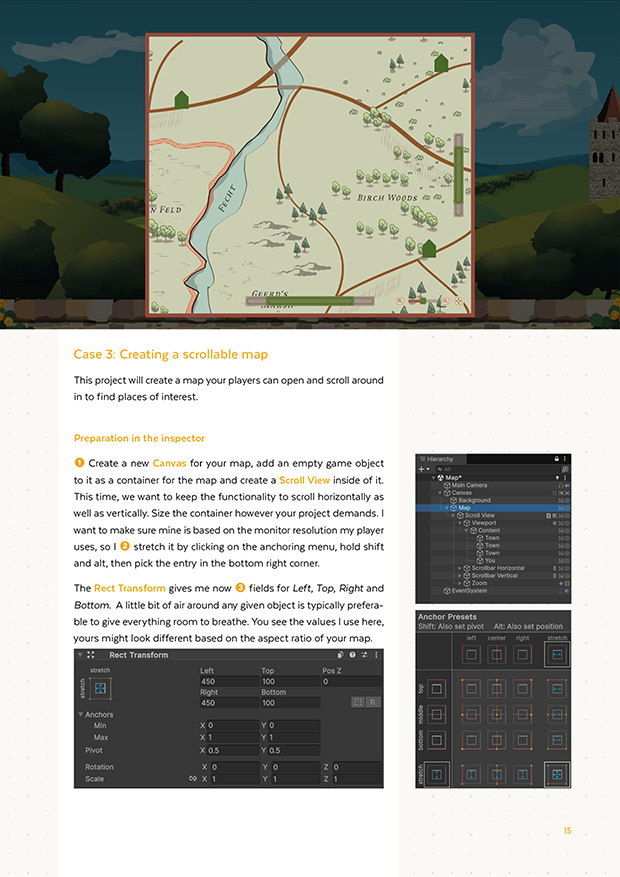
This 21-page guide leads you through everything you need to know about Unity’s Dropdown component. You’ll start by creating a Dropdown in the hierarchy, explore its setup (Label, Arrow, Template, Scroll Rect), and learn how to populate options both in the Inspector and via script—including turning your list into a multi-select dropdown with bitmask flags for advanced selection logic. Clear, illustrated examples show you how to style text-only dropdowns, add images to entries, build image-only dropdowns, customize checkmarks, and set up placeholders for better UX .
Whether you’re building a simple settings menu or a complex in-game selector, this guide packs practical C# snippets, best practices and ContextMenu attributes, to manage values, handle events, and dynamically add, remove, or reset options at runtime. You’ll learn how to decode multi-select bitmasks, subscribing to events safely, and scripting placeholder behavior so your dropdowns feel polished and responsive across any resolution or use case .
Things you will learn:
How to create and configure a TMP_Dropdown component in your Canvas
The structure of a Dropdown’s GameObject hierarchy and how to style each part (Label, Arrow, Template, Scroll Rect)
Adding entries through the Inspector and via C# (single options, multiple options, clearing and resetting)
Enabling multi-select mode and decoding selection bitmasks into usable indices
Styling dropdown variants: text-only, text + images, image-only, custom checkmarks, and placeholders
Accessing and setting dropdown values in code, subscribing/unsubscribing to
onValueChanged, and best practices for dynamic UI updates
Contains:
21-page PDF Guide with detailed chapters, diagrams, and code samples
Link to Source Code on GitHub (MIT License)
Unity Package including an example scene and all scripts, ready to import and experiment with (created in Unity6, v6000.0.41f1)
Available here for $12
The Unity UGUI Guide on Dropdowns
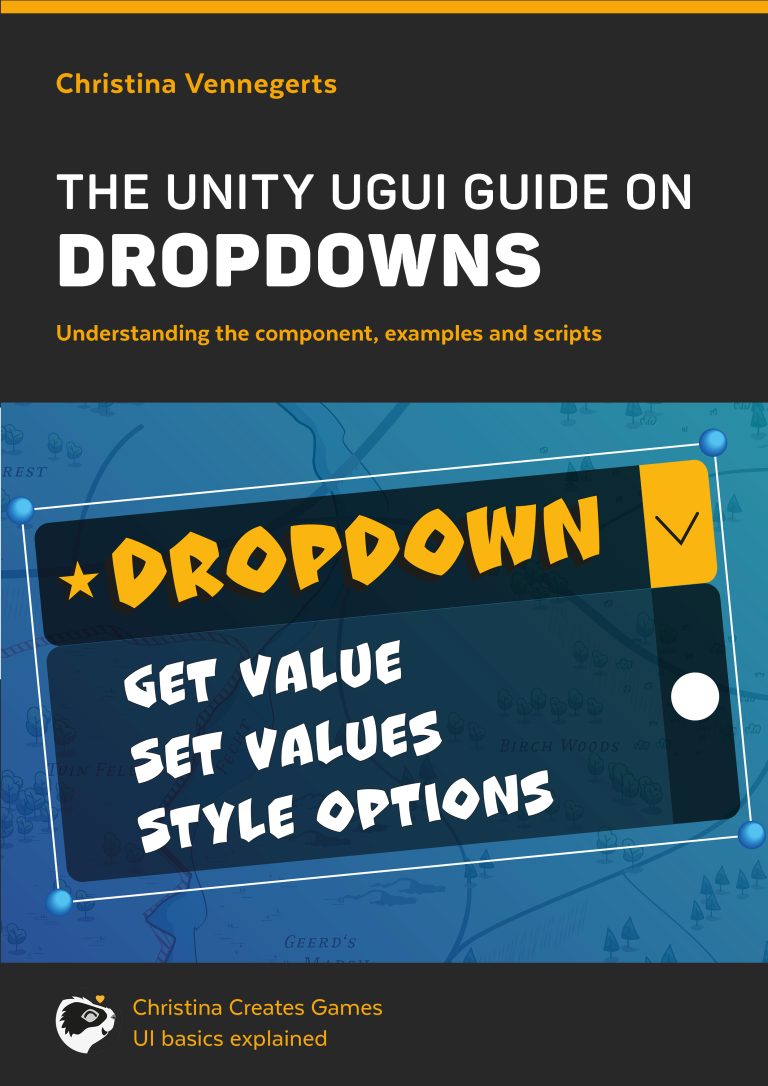
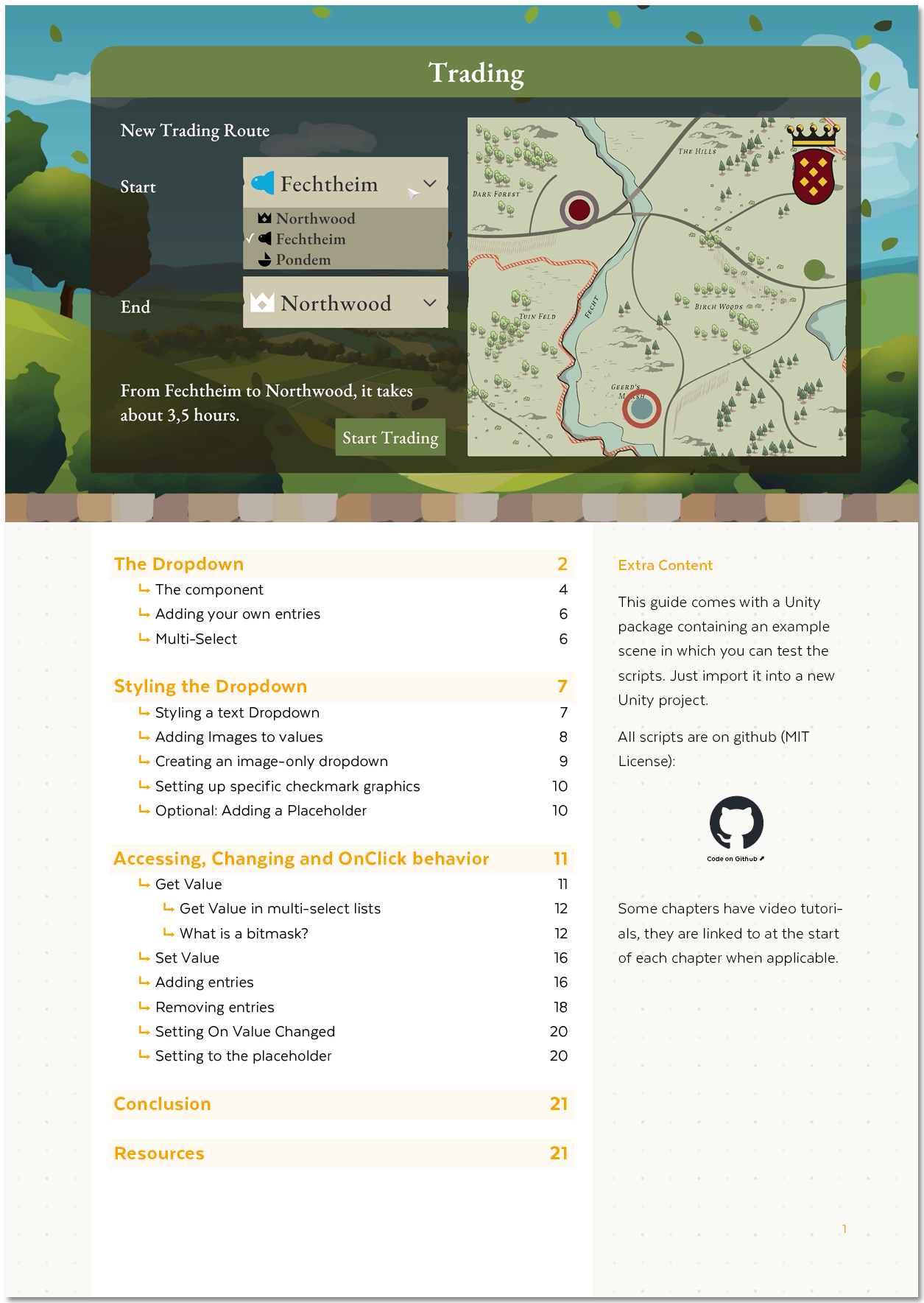
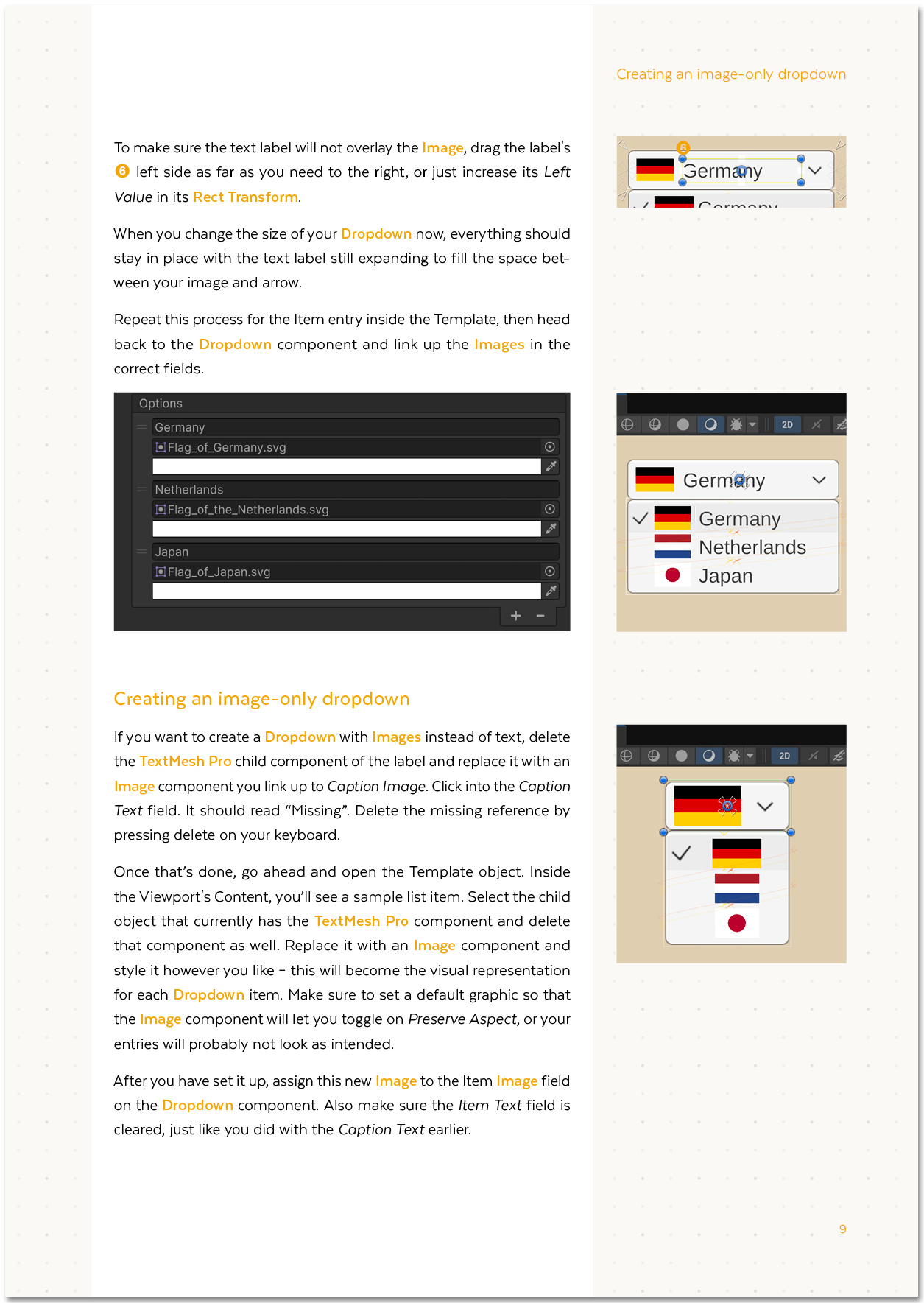
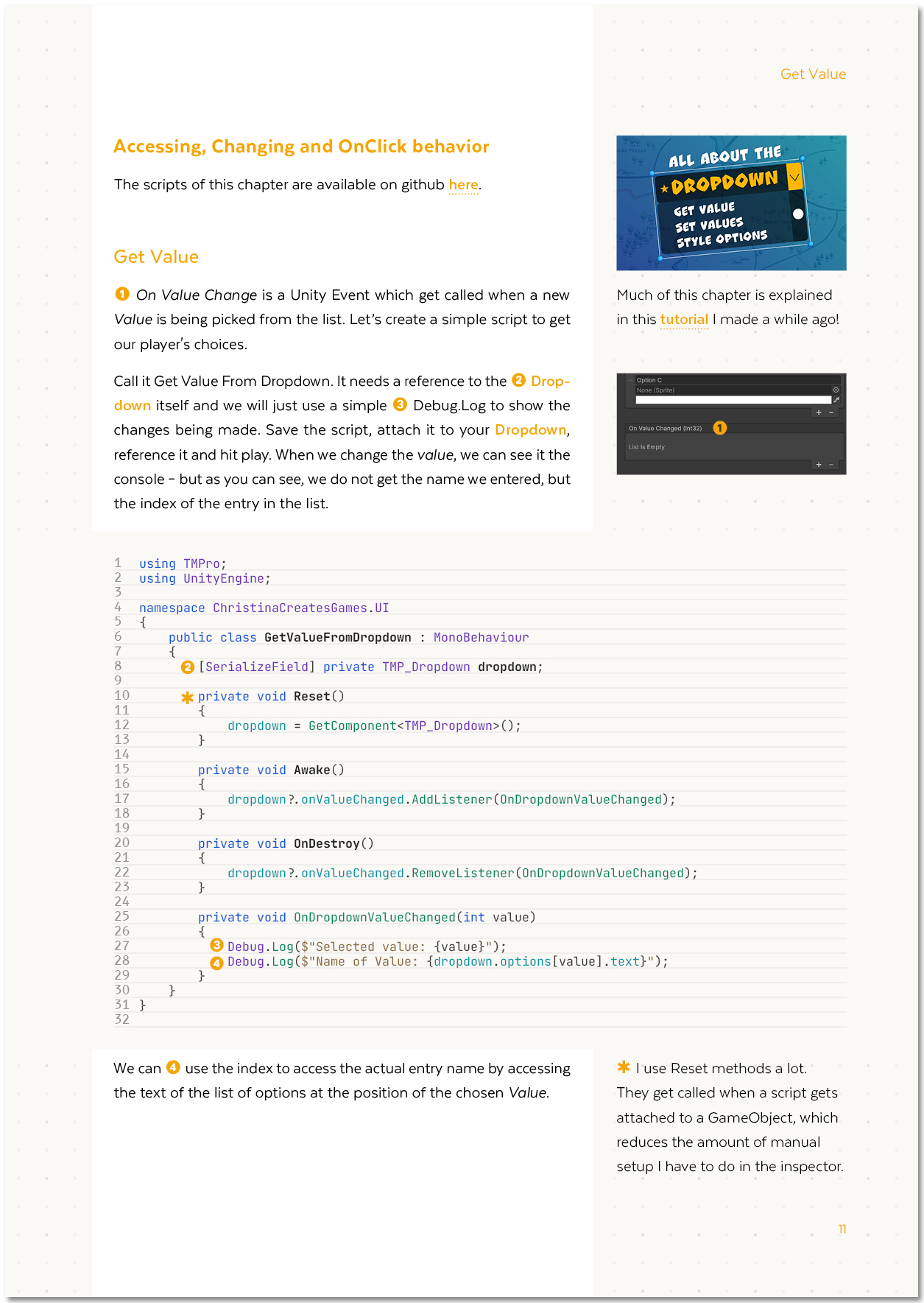
This 21-page guide leads you through everything you need to know about Unity’s Dropdown component. You’ll start by creating a Dropdown in the hierarchy, explore its setup (Label, Arrow, Template, Scroll Rect), and learn how to populate options both in the Inspector and via script—including turning your list into a multi-select dropdown with bitmask flags for advanced selection logic. Clear, illustrated examples show you how to style text-only dropdowns, add images to entries, build image-only dropdowns, customize checkmarks, and set up placeholders for better UX .
Whether you’re building a simple settings menu or a complex in-game selector, this guide packs practical C# snippets, best practices and ContextMenu attributes, to manage values, handle events, and dynamically add, remove, or reset options at runtime. You’ll learn how to decode multi-select bitmasks, subscribing to events safely, and scripting placeholder behavior so your dropdowns feel polished and responsive across any resolution or use case .
Things you will learn:
How to create and configure a TMP_Dropdown component in your Canvas
The structure of a Dropdown’s GameObject hierarchy and how to style each part (Label, Arrow, Template, Scroll Rect)
Adding entries through the Inspector and via C# (single options, multiple options, clearing and resetting)
Enabling multi-select mode and decoding selection bitmasks into usable indices
Styling dropdown variants: text-only, text + images, image-only, custom checkmarks, and placeholders
Accessing and setting dropdown values in code, subscribing/unsubscribing to
onValueChanged, and best practices for dynamic UI updates
Contains:
21-page PDF Guide with detailed chapters, diagrams, and code samples
Link to Source Code on GitHub (MIT License)
Unity Package including an example scene and all scripts, ready to import and experiment with (created in Unity6, v6000.0.41f1)
Available here for $7